![Kairos H 192.png]](https://kb.meetkairos.com/hs-fs/hubfs/Kairos%20H%20192.png?height=50&name=Kairos%20H%20192.png)
Method 1: From Microsoft Teams
Step 1: Open Microsoft Teams and navigate to your Calendar on the left sidebar.
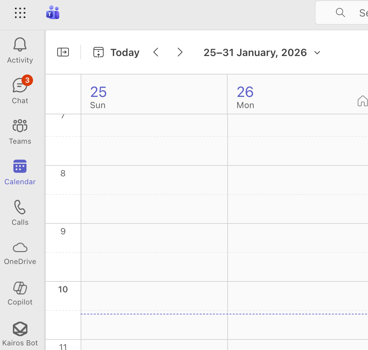
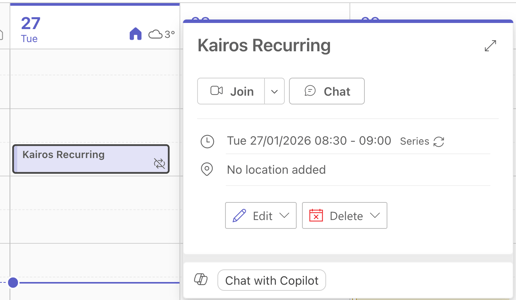
Step 2: Click on the session you want to record automatically.
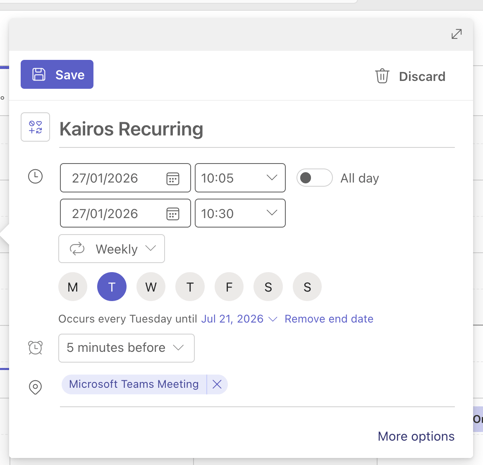
Step 3: Click Edit (or right-click and select Edit series).
Step 4: Click "More options".
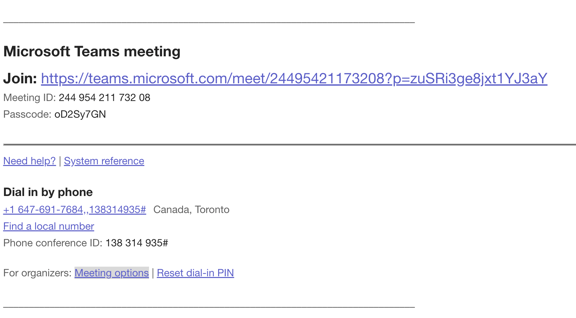
Step 5: Click the "Meeting Options" button in the top right corner.
Step 6: Navigate to "Recording & transcription" and toggle on "Record and transcribe automatically".
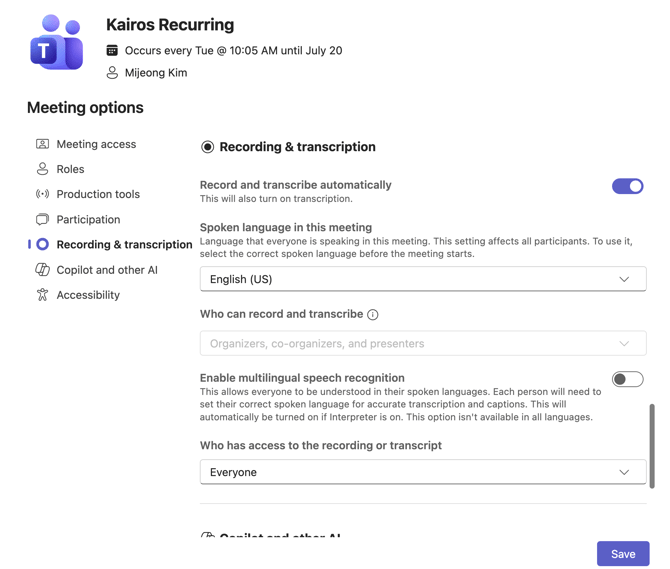
Step 7: Click Save to confirm your changes.
Method 2: From Outlook
Step 1: Open Outlook and go to your Calendar.
Step 2: Find and click the recurring Teams meeting you want to record automatically.
Step 3: Click Edit.
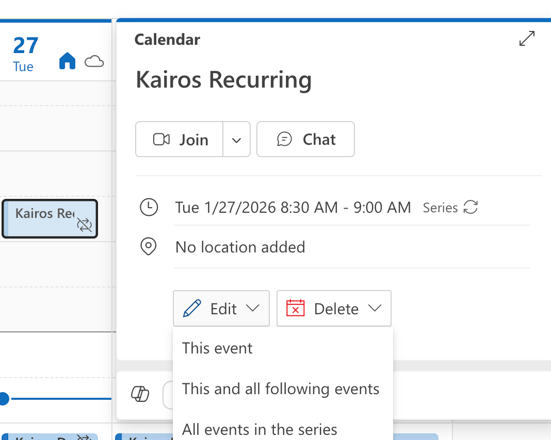
Step 4: Click the "More options" button.
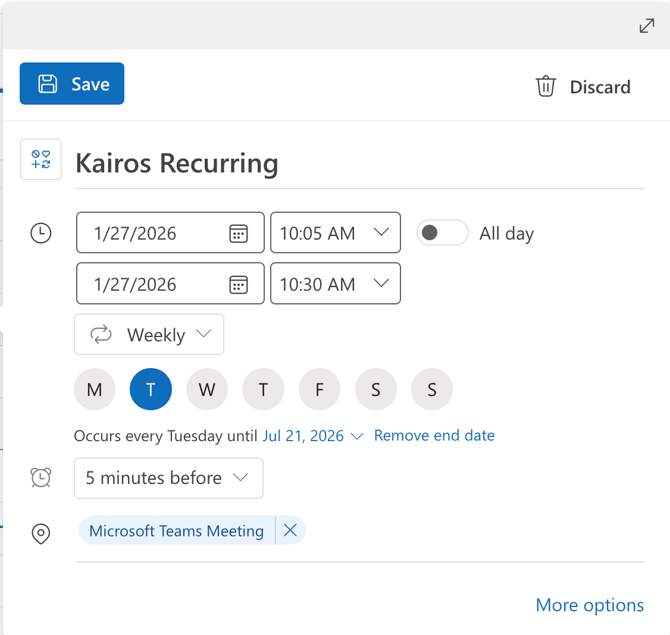
Step 5: In the meeting details, click the "Meeting Options" button.
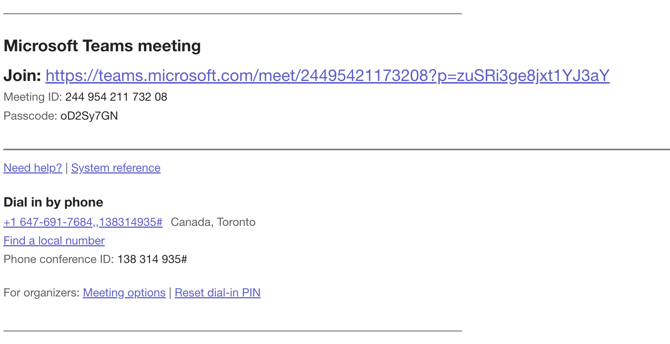
Step 6: Navigate to "Recording & transcription" and toggle on "Record and transcribe automatically".
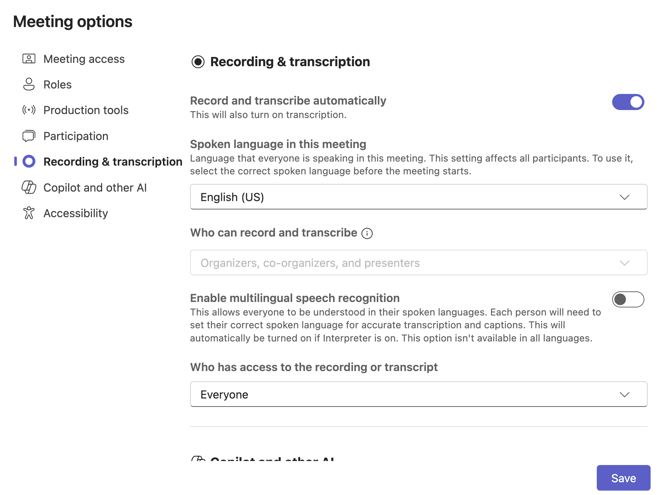
Step 7: Click Save to confirm your changes.