![Kairos H 192.png]](https://kb.meetkairos.com/hs-fs/hubfs/Kairos%20H%20192.png?height=50&name=Kairos%20H%20192.png)
Prerequisites.
- A Zoom account with cloud recording and transcription enabled (Settings → Recording → Cloud recording → Audio transcript: ON)
- Access to the Kairos development environment: Kairos AI Web App (DEV)
Test plan.
Step 1 - Authorize the Kairos development app
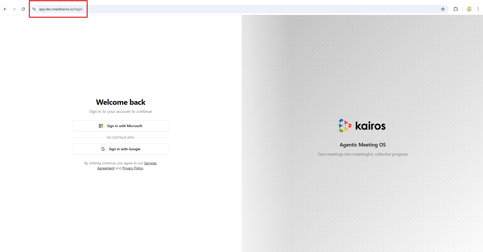
- Navigate to Kairos AI Web App (DEV) and sign in with a Microsoft account (provided Release notes for the app reviewer section).
- Go to Settings → Integrations
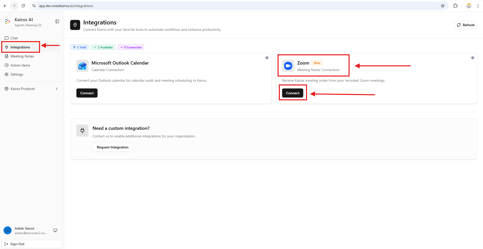
- Click Connect Zoom
- You will be redirected to Zoom's OAuth consent screen using the development client ID
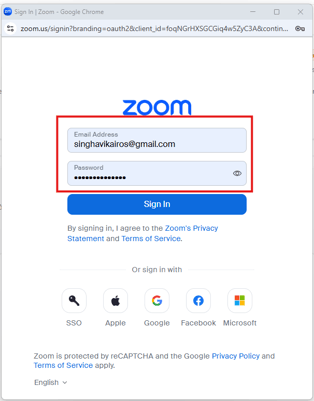
- Use provided Google account to sign in to Zoom and allow permission.
Allow permissions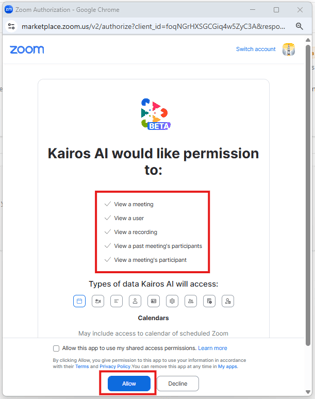
Close this window.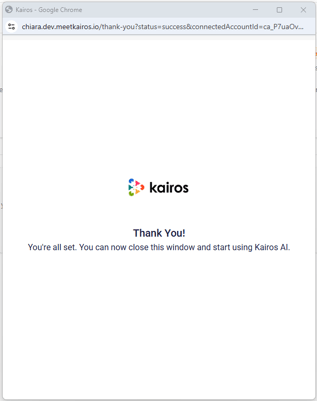
- Review the requested permissions and click Allow
- You are redirected back to Kairos. Confirm the "Connected as <your zoom email>" label appears under the Zoom integration.
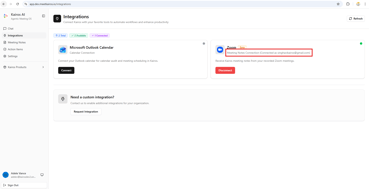
Step 2 — Trigger a Zoom meeting with transcript
- Start and end a Zoom meeting (minimum ~2 minutes) with cloud recording enabled.
Use the account provided in "Account Credentials" section. - Wait for Zoom to send the recording.transcript_completed webhook (typically 5–15 minutes after the meeting ends)
- Kairos processes the webhook, fetches participants and meeting metadata from the Zoom API, downloads the VTT transcript, and generates an AI summary
Step 3 — Verify meeting notes appear in Kairos
- Navigate to Meeting Notes in the Kairos AI Web App (DEV)
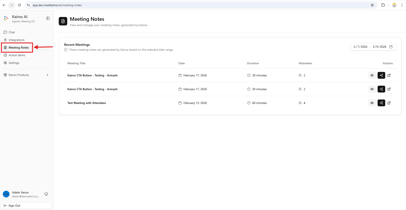
- Confirm the completed Zoom meeting appears with a summary, key decisions, and action items.
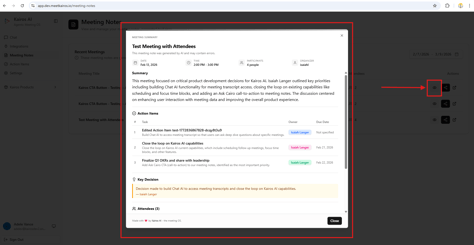
- Open the meeting detail and verify the AI-generated summary reflects the meeting content
Step 4 — Test disconnect
- Go to Settings → Integrations → Zoom → Disconnect
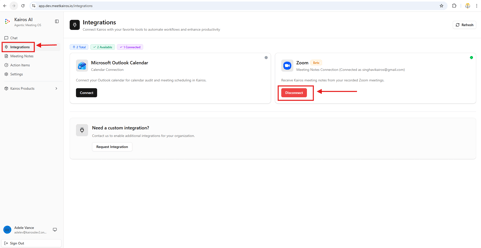
- Confirm the integration shows as disconnected
- Confirm no new meeting notes are processed for subsequent Zoom meetings
Zoom API permissions exercised during testing:
cloud_recording:read:recording: Downloads the VTT transcript file attached to the recording.transcript_completed webhook.
The download_token from the webhook payload is used as the Bearer token — no direct API call is made, but this scope is required for the download URL to be valid.
meeting:read:list_past_participants:Fetches the full list of participants (name, email, join/leave times) for the completed meeting session.
Used to populate attendee metadata stored with the meeting notes.
meeting:read:participant:Required alongside list_past_participants to read individual participant details (email, display name, duration) from the past meeting response.
meeting:read:meeting:Fetches meeting details including scheduled start time, duration, timezone, topic, and the invited attendees list (meeting_invitees).
Used to enrich metadata with invitees who were scheduled but did not attend.
user:read:user:Called once at OAuth authorization time to retrieve the connecting user's Zoom user ID, account ID, and email. This maps the Zoom identity to the Kairos user account.