![Kairos H 192.png]](https://kb.meetkairos.com/hs-fs/hubfs/Kairos%20H%20192.png?height=50&name=Kairos%20H%20192.png)
Installing the Kairos AI Zoom Integration
Prerequisites:
- Kairos Account using either Microsoft or Google.
-
Zoom Account
- Licensed user on a Pro, Business, or Enterprise account
- Cloud Recording Enabled.
To begin using Kairos AI, you must connect Zoom from Kairos AI web app. Follow these steps:
Only Cloud recordings are supported.
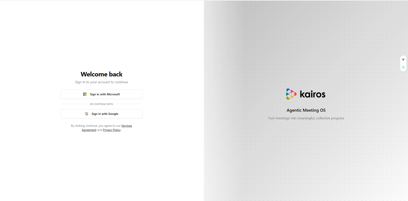
- Navigate to Kairos AI Web App (https://app.meetkairos.com)
- Create an account using Google or Microsoft
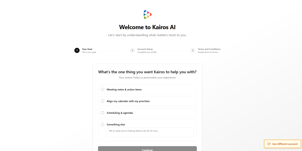
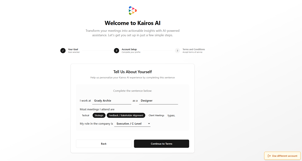
- Fill out basic information and go through all Get Started steps.
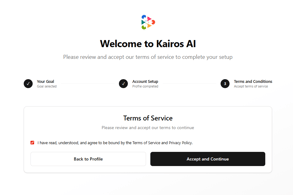
- Create an account using Google or Microsoft
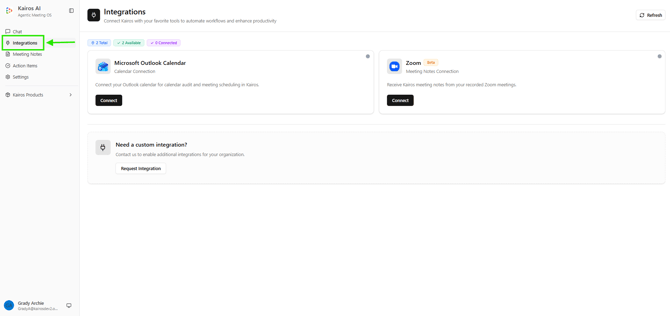
- After signup navigate to Integrations page
- Sidebar > Integrations
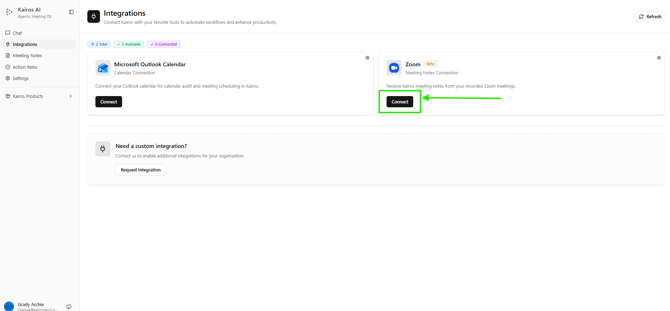
- Click on Connect under Zoom Integration
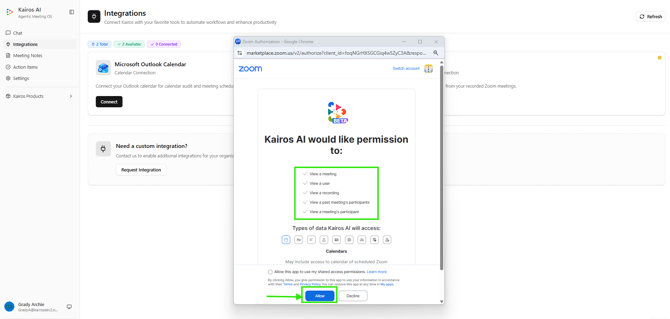
- Sign In to your Zoom account and Allow the permissions.
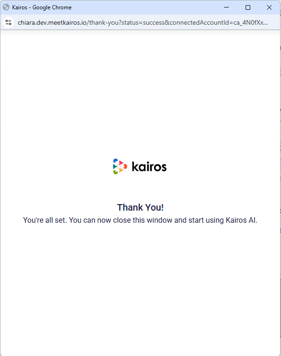
- After Zoom is successfully connected you will see the Zoom account you connected.
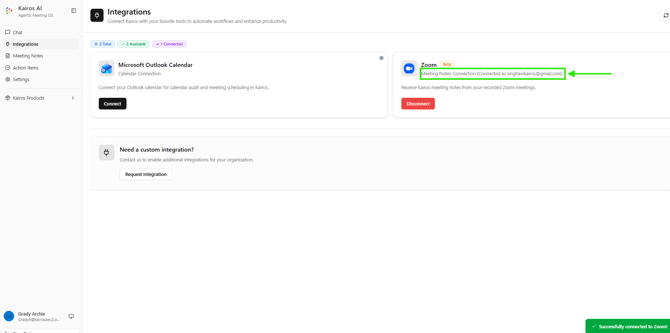
- Sidebar > Integrations
- Record your Zoom meetings and Kairos will generate Meeting Notes and Action Items for you.
- Meeting Notes
- View and Share your meeting notes.
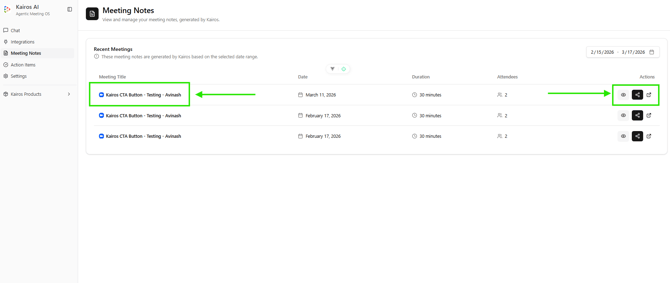
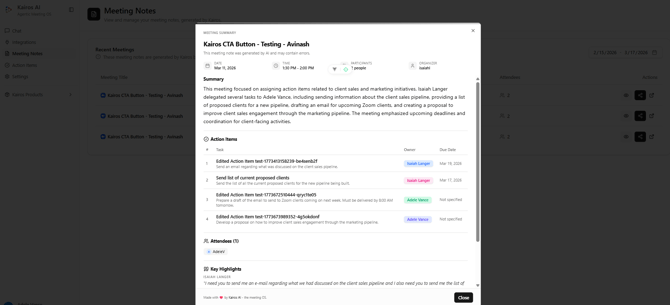
- View and Share your meeting notes.
- Action Items
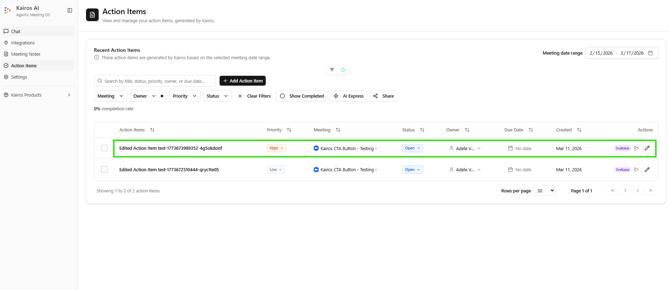
- Meeting Notes
- Verify Installation
-
- Log in to your Zoom account.
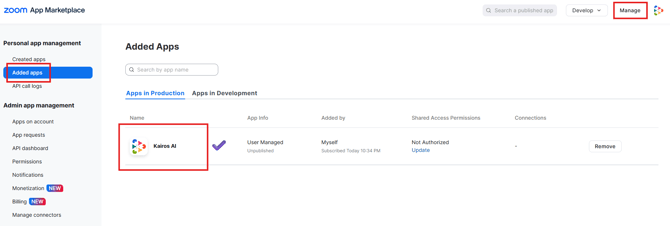
- On left pane, click on Advance > App Marketplace
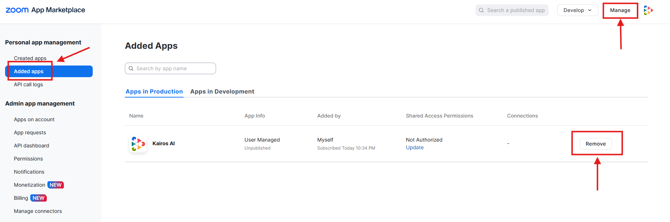
- On Top right Click Manage > Added Apps or search for Kairos AI
- Confirm that Kairos AI appears in your Added Apps section.
Using Kairos AI for Zoom meetings
To use Kairos AI effectively, ensure the following prerequisites are met:- A Zoom Business, Education, or Enterprise license.
- Cloud recording enabled on your Zoom account.
- Only cloud recordings are supported.
Enabling Cloud Recording
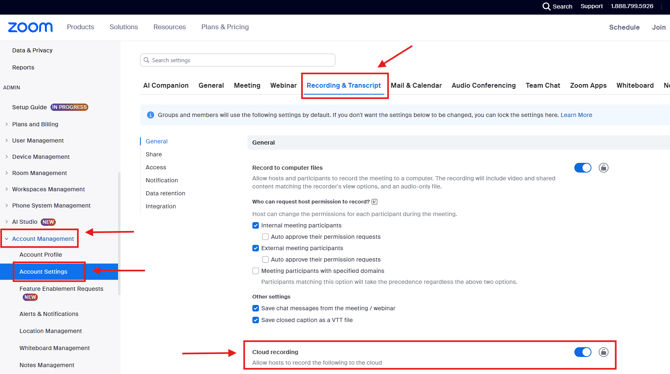
To enable cloud recording in Zoom:- Log in to the Zoom Web App.
- In the left pane, click Account Management > Account Settings
- Navigate to the Recording & Transcript tab in the header menu.
- Under General, locate Cloud Recording and toggle it to Enabled.
Once Kairos AI is integrated and cloud recording is enabled, Kairos AI will automatically receive a copy of your meeting transcripts and generate concise meeting summaries for all recorded meetings.
Removing the Kairos AI Zoom Integration
To deauthorize and remove the Kairos AI app from your Zoom account:- Log in to your Zoom account and navigate to the Zoom App Marketplace.
- Click Manage > Added Apps or search for "Kairos AI."
- Select the "Kairos AI" app.
- Click Remove.